Tesla Sign-In Permissions
Overview
When you sign in with Tesla, Netzero asks Tesla for a set of permissions. The sign-in screen lets you choose whether that set includes access to Tesla vehicle charging.
Your Data and Location
Netzero does not have access to your home address or your vehicle’s location. For vehicles, the only location-related information it receives is whether the vehicle is at home, without the specifics of where home is, so EV charging automations only run for home charging.
Some features, such as solar estimates and weather information, work better with an approximate
location. This is opt-in: you can enter a city in the app under Settings > Profile > Location (city).
From your Tesla profile, Netzero only uses your email address. It is not shared with anyone.
Energy Permissions (Required)
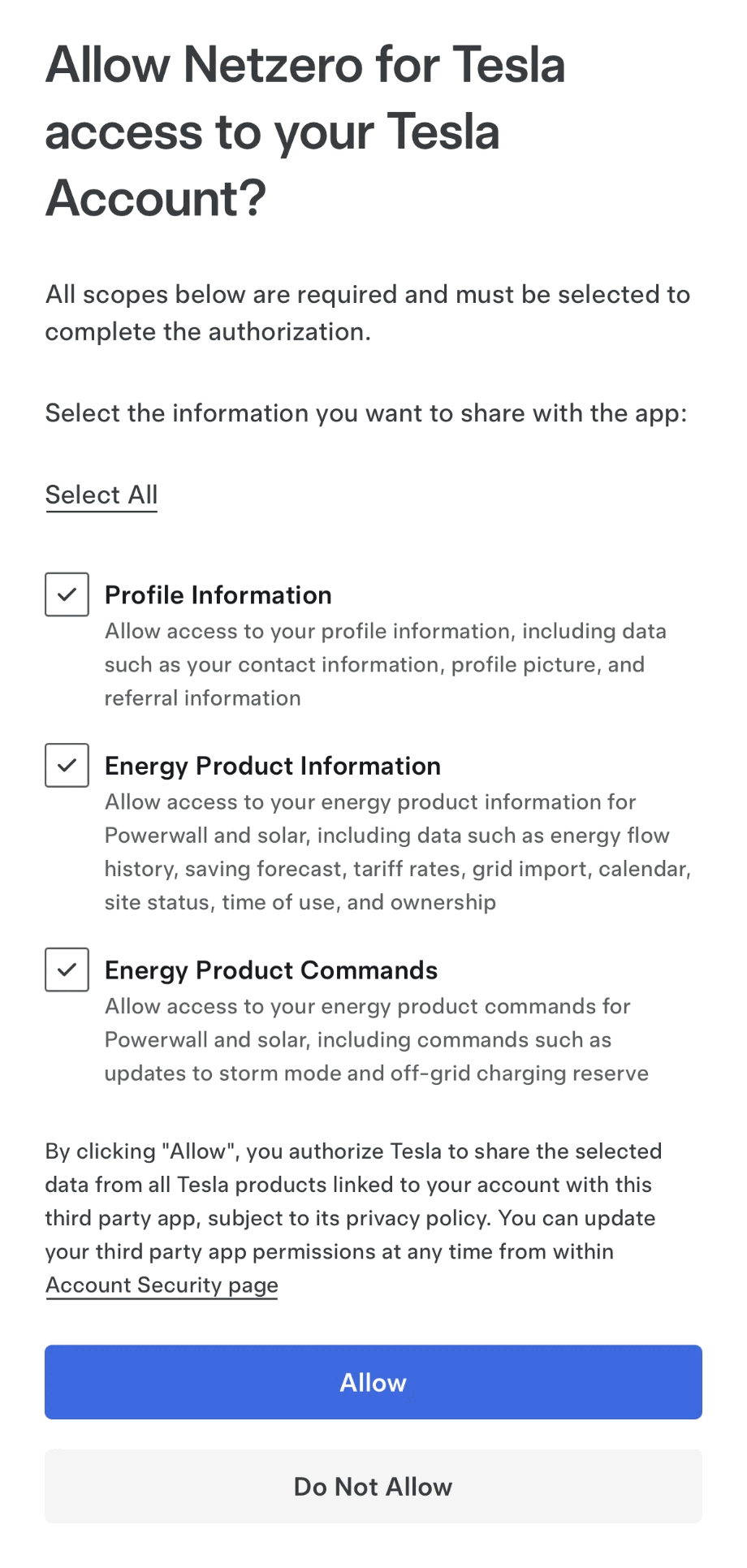
The Profile Information, Energy Product Information, and Energy Product Commands permissions are always requested. Netzero needs them to show your Powerwall and solar data, run automations, and change Powerwall settings on your behalf.
Vehicle Permissions (Optional)
The Vehicle Information and Vehicle Charging Management permissions are only needed for Tesla vehicle charging features: vehicle charging data, EV charging automations, and Charge on Solar. See EV Charger Settings for what these permissions allow.
The Allow Netzero to access Tesla vehicle charging checkbox on the sign-in screen controls whether
Netzero requests them:
- Checked (default): Tesla asks you to approve both the energy and the vehicle permissions.
- Unchecked: Tesla only asks for the energy permissions. Vehicle charging features won’t be
available, but you can add the vehicle permissions later in the app under
Settings > Tesla EV Charging.
With the box unchecked, Tesla’s permissions screen only lists the profile and energy permissions:
Once the vehicle permissions have been granted, unchecking the box at a later sign-in does not remove them. To remove permissions, go to the Third-Party Apps section of your Tesla account security page and select Netzero.